View the SCR Dashboard
The Single Central Record (SCR) dashboard gives you a company-wide view of your safer-recruitment compliance. It shows how many checks are complete, what is expiring or expired, and which people are most at risk.
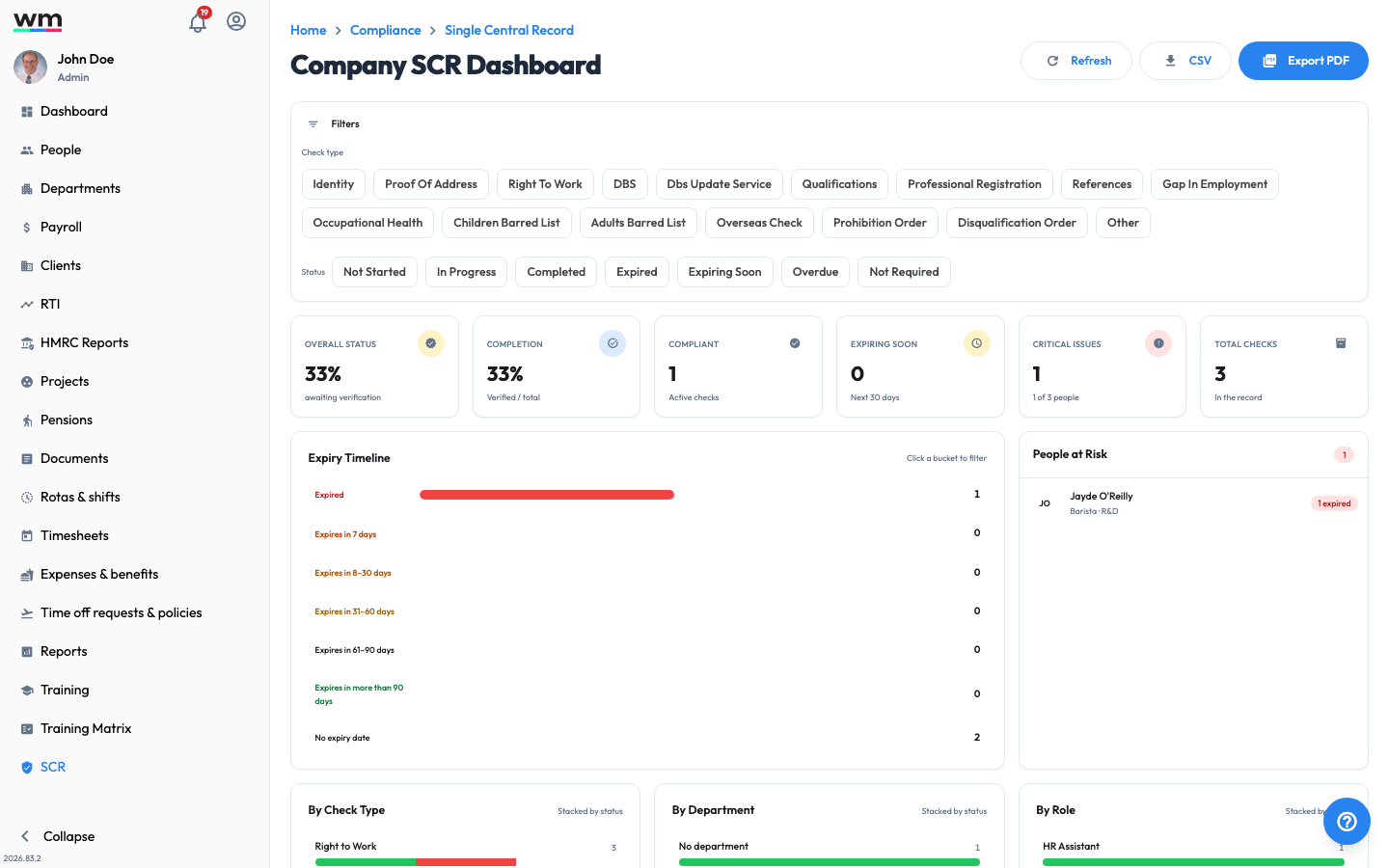 The SCR dashboard, your company-wide view of safer-recruitment compliance.
View the SCR Dashboard
To view the SCR dashboard, follow these steps:
- Sign in to your "Workmax" account with a manager or admin account.
- Go to the "Compliance" section and open the "Single Central Record" (SCR).
- Review the dashboard, which includes:
- KPI cards — compliance score, completion percentage, critical issues and overall status.
- Summary breakdown — totals for compliant, non-compliant, expired, expiring soon, in progress and not started.
- Expiry timeline — a time-bucketed view of upcoming expiries.
- People at risk — employees with expired or expiring checks.
- Checks table — every check with its person, type, status, issue date and expiry date.
- Use the filters bar to narrow the view by check type, compliance status, department, location or role.
View a Person's SCR
To review one employee's checks, click their name from the dashboard (or from the People at risk panel) to open their individual SCR page. This shows their overall status, completion percentage, and each required check with its status and dates.
The checks tracked include DBS check, right to work, employment references, proof of address, identity check, qualification verification, professional registration and more. If you have any questions or need help, please contact Workmax Support.